You don’t need more than one cursor in vim
八月 30, 2024 [C/C++] #Shell 与命令行 #obsidian #编译链接You don’t need more than one cursor in vim
Sublime text first introduced multiple cursor editing (as far as I know). Meaning editing code at multiple positions at the same time. There is a plugin for vim (vim-multiple-cursors) which allows you to mimic that behaviour, but it has some problems. Autocompletion is broken, the history is different from what I might expect and you can’t map the manipulations to a keybinding for your next vim session. Furthermore it’s hard to keep an eye on all the cursors especially when they are on different columns. After using it for quite some time I came to the conclusion that there is no situation which can’t be addressed (IMHO even better) with “native” vim features.
📄 [图片文字版] vim 多光标演示 GIF:多行 JS 代码中的多个 var 关键字同时被选中形成多个光标,一处输入(输入框显示 var↵)即同步应用到所有光标位置,演示 vim 多光标插件「一处编辑、多处生效」的批量编辑效果。
vim-multiple-cursors (broken autocompletion, history)
Changing a word at n positions
This is the simplest problem you usually want to solve with multiple cursors. In Sublime Text 2 or Atom you usually search for a word. Select each word you want to change manually and then edit each position at once.
==In vim selecting and editing is one step. This can be done with the ========gn======== text-object. Normally you will search for a word you want to change and the change the next found occurrence with ========cgn====once and then use vim’s most powerful command the== ==. (dot)== ==. Using== ==.======== you can apply the change to the next word or skip one word with ========n======== which will jump to the next word.==
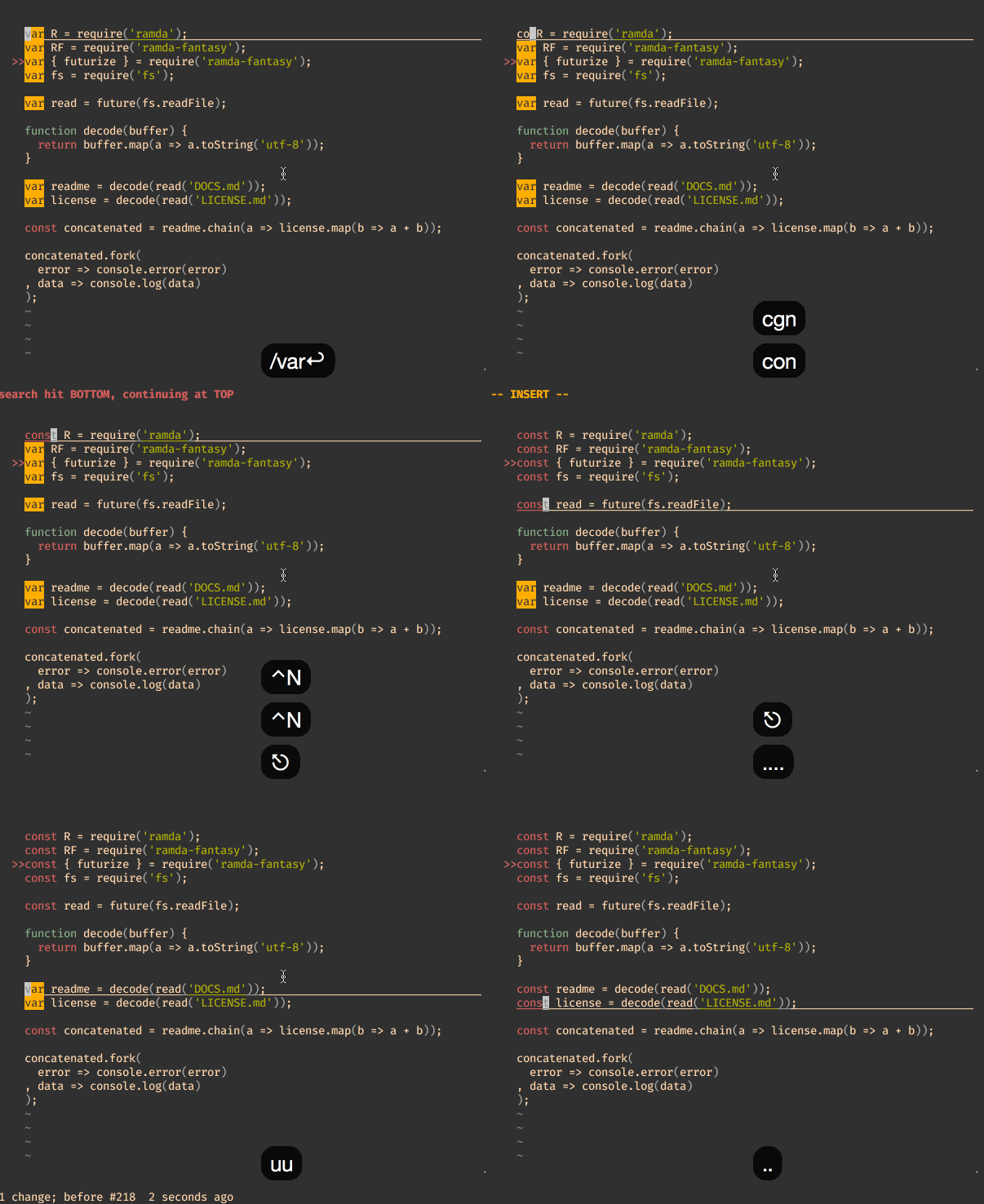
cgn (autocompletion and history)
The text-object gn works like other text-objects with all commands. You can for example use it withd to delete the matches.
Changing a visual block
Surprisingly often there is a situation where you want to change a rectangular block of code that looks similar. In vim visual-block can be used for different types of modifications. The main difference to other editors is, that if you change the text the modification is first only made to the first line and will apply to all lines after you finished the modification.
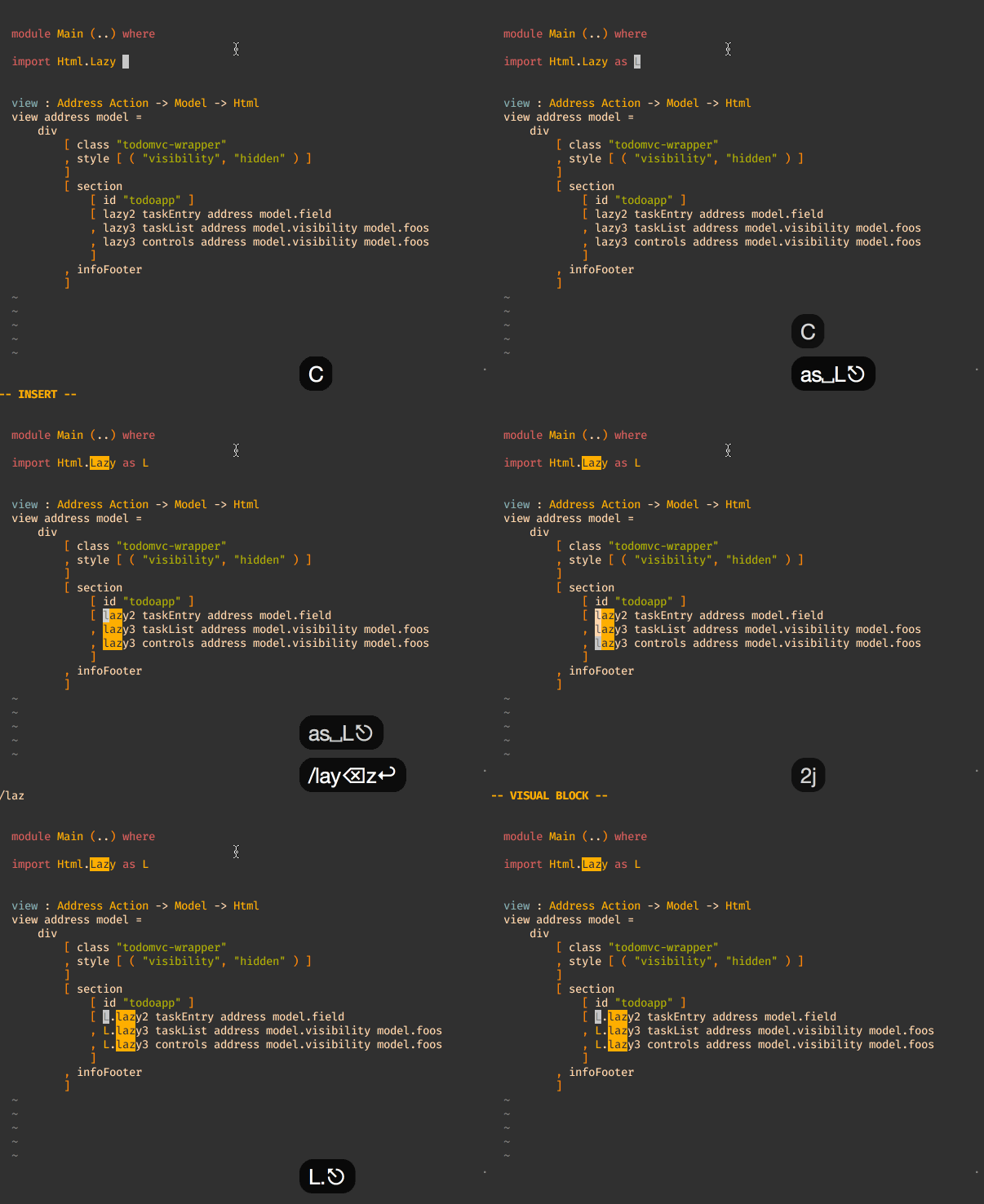
v-block (insert before block)
Making complex changes on multiple lines
I feel it’s often hard to keep track where each cursor is, when making complex changes at different position at the same time. I think it’s simpler to record the mutation on one line and then replay it on each line at once. In the beginning you may find it difficult to create a general macro that works for each line, but with some exercise you will get the hang on it.
There are some tricks to achieve that.
- make going to the beginning of the line the first action when recording your macro.
- navigate to the location where you want to change with f ort.
- Avoid using the arrowkeys or hjkl. Not all rows may have the same length. Usingw,e,b is slightly better.
📄 [图片文字版] vim 多光标+宏录制 GIF:底部状态栏显示 -- INSERT -- recording,输入框显示 qqce——先按 qq 在寄存器 q 开始录制宏,再按 ce(change to end of word)进入插入模式改写当前词(var 改为 const),多光标下宏会在每个光标处同时生效。
macro (reusable on different lines)
To apply the macro to all lines you need a little trick I learned from Drew Neil’s awesome book practical vim. Add the following script (visual-at.vim) to your vim configuration. This allows you to visually select a section and then hit @ to run a macro on all lines. Only lines which match will change. Without this script the macro would stop at lines which don’t match the macro.
Running macros over the whole file
You can run a macro for all lines that mach a pattern on the whole file. You need to enter the command-mode by entering : and then using theglobal (shortg) command.
📄 [图片文字版] vim 多光标宏操作 GIF:底部状态栏显示 recording,输入框显示 qq,演示在多光标场景下用 qq 结束宏录制,录制的改词动作在所有光标处回放,配合前两步实现多行代码中 var→const 的批量替换。
global (executing a macro)
Saving your work
The ultimate feature that comes with vim is, that you can edit and save these macros for your next vim session and even add a key mapping. You can paste it in a new buffer by entering “[register of your macro]p (f.e. if you recorded it with @q you can paste it with “qp). See the following gif, which explains how to paste a macro to your vimrc and add a mapping to run it on every line that matches the pattern.
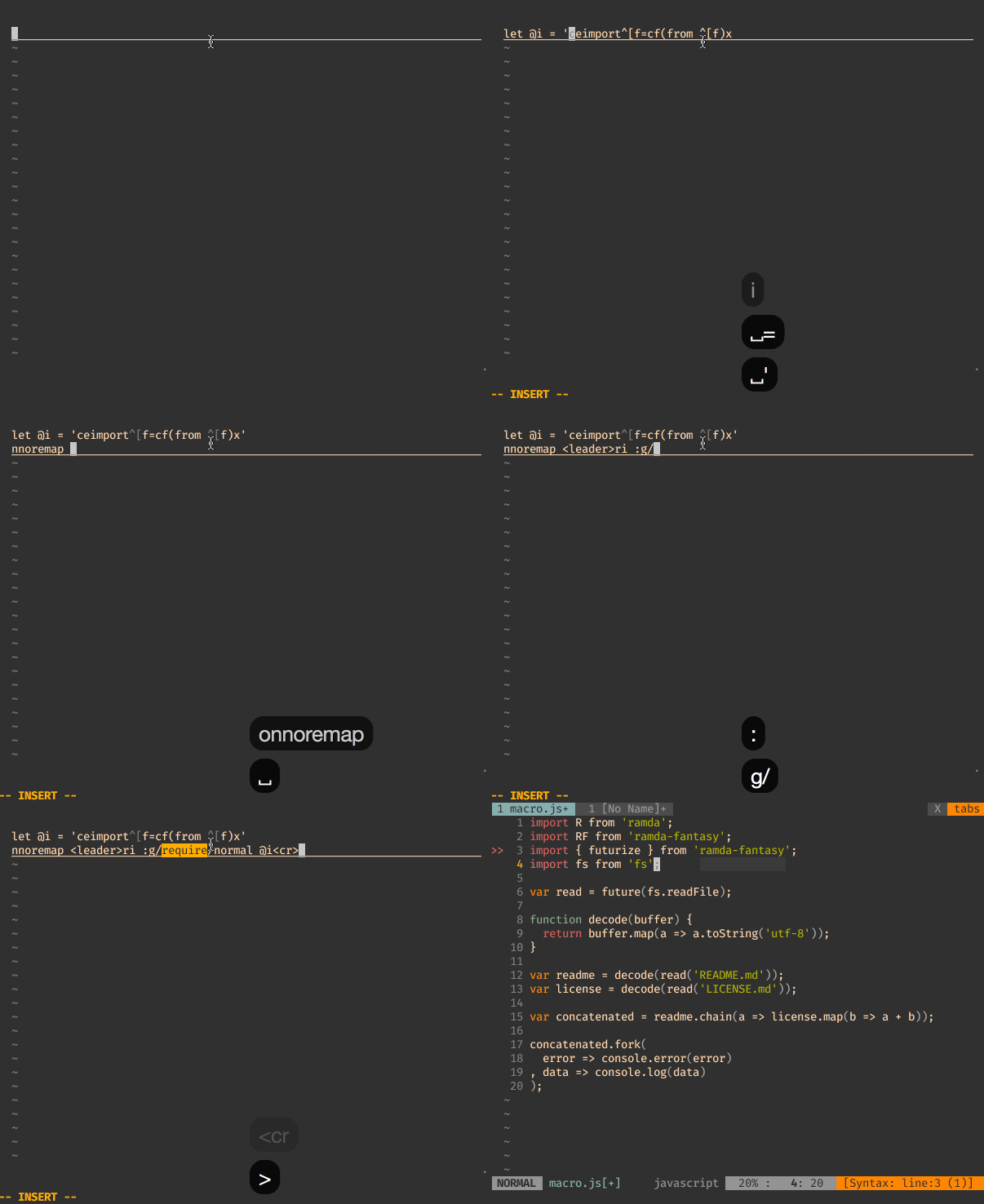
saving a macro to your .vimrc
Also if you messed up you can edit the macro like this. (thoughtbot/how-to-edit-an-existing-vim-macro)
Conclusion
We saw how you can solve problems with “native vim features. The text-object gn helps in simple situations. But to significantly speed up your productivity you should learn how to use macros. I recently started using vim-enmasse. It basically let’s you apply the techniques above to multiple files at the same time. I will share my experience with it as soon as it settles in my daily workflow.